How to Version .NET Dapr Workflows in Aspire Without Breaking In-Flight Instances
Learn how to safely evolve .NET Dapr Workflows in Aspire using version patches for small additive changes and named workflow versions for larger structural changes, without breaking in-flight instances.

Marc Duiker
Developer Advocate
Introduction
You have a Dapr Workflow running in production and a change request lands. Maybe an activity needs to be added, or the control flow needs a more substantial rework. You cannot just redeploy and hope for the best: in-flight workflow instances replay their saved history against the updated workflow code, and any non-deterministic change will fail the replay.
This post shows you how to evolve your .NET Dapr Workflows safely using two complementary techniques: patches for small, additive changes, and named workflow versions for larger, breaking changes. Using the EnterpriseDiagnostics Aspire demo as a running example, you will see when each approach applies, how to wire it up, and how to verify it behaves correctly.
The In-Flight Workflow Problem
Dapr Workflow is durable because the engine appends every activity call, with inputs and outputs, durable timers, and child workflow calls to the workflow state store. When the workflow application restarts, for instance after a new deployment, the Dapr Workflow engine replays that history against your updated workflow code to rebuild the in-memory state and continue where it left off.
Replay only works if the code is deterministic. If the new code calls a different activity, reorders steps, or inserts a branch before a completed step, the replayed history stops matching what the workflow expects. The instance fails, gets stuck, or finishes silently with incorrect state.
The question is not whether you can change the workflow code, but how to change it without breaking instances that are already running. Dapr Workflow versioning solves this.
The EnterpriseDiagnostics Demo
The EnterpriseDiagnostics demo is a .NET 10 Aspire application that runs a Dapr Workflow to perform diagnostics for the starship USS Enterprise. It analyzes the hull, warp core, and security systems, then generates recommendations and notifies the bridge. All the code is available in this GitHub repo.
Before you run the demo, make sure you have the following installed:
- Docker or Podman
- .NET 10 SDK
- Aspire CLI
- Dapr CLI (v1.18 and initialized with
dapr init)
With the prerequisites in place, continue as follows:
- Clone the repository and open the
dapr-workflow-versioningfolder. - Use the terminal to navigate to the
EnterpriseDiagnosticsfolder and runaspire run. Aspire starts a Valkey container for workflow state, the ApiService (with the workflow definition) with a Dapr sidecar, and the Diagrid Dev Dashboard container. - Open the Aspire Dashboard with the link provided in the terminal.
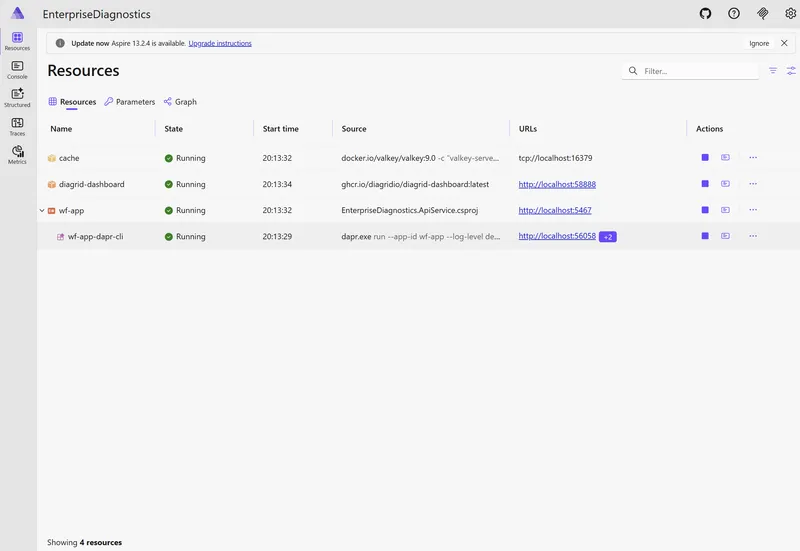
- Use the terminal to start a workflow by sending a POST request to the
/startendpoint:
curl -X POST http://localhost:5467/start \
  -H "Content-Type: application/json" \
  -d '{
    "id": "diag-001",
    "shipName": "USS Enterprise NCC-1701-D",
    "diagnosticsDate": "2370-04-08",
    "engineerName": "Geordi La Forge"
  }'
Or using PowerShell:
$body = @{
    id = "diag-001"
    shipName = "USS Enterprise NCC-1701-D"
    diagnosticsDate = "2370-04-08"
    engineerName = "Geordi La Forge"
} | ConvertTo-Json

Invoke-RestMethod -Uri "http://localhost:5467/start" -Method Post -ContentType "application/json" -Body $body
Or use the EnterpriseDiagnostics.ApiService/EnterpriseDiagnostics.ApiService.http file and use a REST client to call the /start endpoint.
-
Open the Diagrid Dev Dashboard from the Aspire resources page to see the workflow in the
runningstate.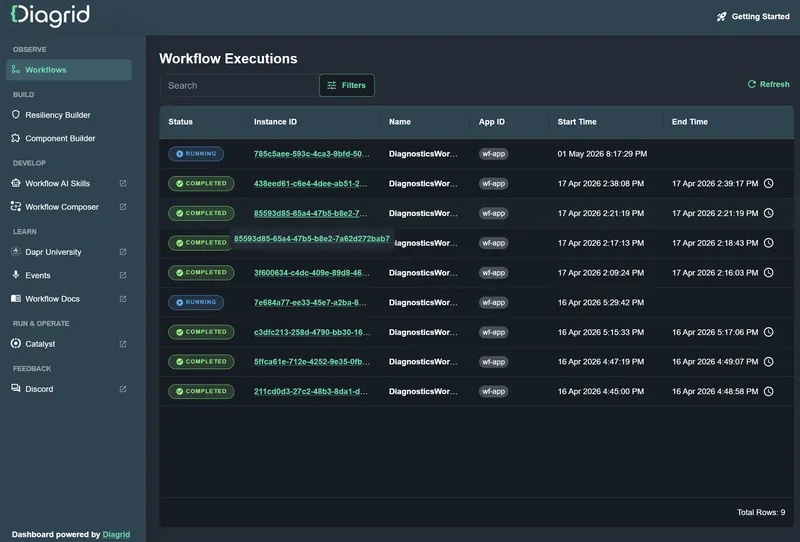
-
To simulate the effect of in-flight workflows and changing versions, pause the workflow before it finishes by making a POST request to the
/pauseendpoint:
curl -X POST http://localhost:5467/pause/diag-001Or using PowerShell:
Invoke-RestMethod -Uri "http://localhost:5467/pause/diag-001" -Method PostThe workflow should have the suspended status now.
- Stop the Aspire solution using
CTRL+Cin the terminal where Aspire is running.
Inspect the Workflow & Activity Registration
The Dapr Workflow configuration lives in Program.cs of the EnterpriseDiagnostics.ApiService:
builder.Services.AddDaprWorkflow();
builder.Services.AddDaprWorkflowVersioning();AddDaprWorkflowauto-registers each workflow and activity with the Dapr sidecar so the engine can invoke it during execution and replay.AddDaprWorkflowVersioninglayers the versioning extension on top, which is what makesIsPatchedand multiple named workflow types work.
Apply a Version Patch for Small, Additive Changes
Workflow versioning can be done in two ways: patching and named versions. Use a patch when the change is additive, existing steps keep executing in the same order, and you want one workflow type to serve both old and new instances. The pattern is a context.IsPatched("FeatureName") guard. Instances started after the deployment follow the path where IsPatched is true. In-flight instances replay through the else branch, and are not affected by the change.
- In the EnterpriseDiagnostics demo application, open the
DiagnosticsWorkflow.csfile located inEnterpriseDiagnostics\EnterpriseDiagnostics.ApiService\Workflows\. - Add the following code to the
DiagnosticsWorkflowunderneath theAnalyzeSecuritySystemsActivityand replace the existingvar recommendationsInput = ...code block:
RecommendationsInput recommendationsInput;
if (context.IsPatched("AddWeaponsAnalysis"))
{
    var weaponsResult = await context.CallActivityAsync<AnalysisResult>(
        nameof(AnalyzeWeaponSystemsActivity),
        new AnalysisInput(input.ShipName, input.DiagnosticsDate, input.EngineerName, "Weapon Systems"));

    recommendationsInput = new RecommendationsInput(
        input.ShipName,
        input.DiagnosticsDate,
        input.EngineerName,
        hullResult,
        warpCoreResult,
        securityResult,
        weaponsResult);
}
else
{
    recommendationsInput = new RecommendationsInput(
        input.ShipName,
        input.DiagnosticsDate,
        input.EngineerName,
        hullResult,
        warpCoreResult,
        securityResult);
}
Workflow instances scheduled before the patch follow the else branch during replay and finish with their original three-analysis recommendations. New workflow instances pick up the weapons analysis activity.
Verify the Patch Behavior
- Restart the application using
aspire run. - Resume the previously paused workflow (
diag-001) by making this curl request:
curl -X POST http://localhost:5467/resume/diag-001Or using PowerShell:
Invoke-RestMethod -Uri "http://localhost:5467/resume/diag-001" -Method PostThis workflow instance should now continue without calling the AnalyzeWeaponSystemsActivity.
- Start a new workflow instance by calling the
/startendpoint:
curl -X POST http://localhost:5467/start \
  -H "Content-Type: application/json" \
  -d '{
    "id": "diag-001-patch",
    "shipName": "USS Enterprise NCC-1701-D",
    "diagnosticsDate": "2370-04-08",
    "engineerName": "Geordi La Forge"
  }'
Or using PowerShell:
$body = @{
    id = "diag-001-patch"
    shipName = "USS Enterprise NCC-1701-D"
    diagnosticsDate = "2370-04-08"
    engineerName = "Geordi La Forge"
} | ConvertTo-Json

Invoke-RestMethod -Uri "http://localhost:5467/start" -Method Post -ContentType "application/json" -Body $body
The diag-001-patch workflow instance should continue calling all four activities.
- Start a second workflow instance of the patched workflow (using ID
diag-001-patch-2) and pause it so it can be resumed later, after a larger change is introduced. Use the following curl command to pause the workflow instance:
curl -X POST http://localhost:5467/pause/diag-001-patch-2Or using PowerShell:
Invoke-RestMethod -Uri "http://localhost:5467/pause/diag-001-patch-2" -Method PostThe workflow should have the suspended status now.
- Stop the Aspire solution using
CTRL+Cin the terminal where Aspire is running.
Use a Named Version for Larger Changes
You can introduce multiple patches in a workflow, you can even nest patches, but patching has its limits and the workflow definition can become cluttered. Once you have many patches or introduce a large workflow change (e.g., going from task chaining to fan-out/fan-in), use a new named workflow type and keep the old workflow, so existing instances can still run to completion.
The EnterpriseDiagnostics demo contains additional workflow definitions alongside the original DiagnosticsWorkflow in the EnterpriseDiagnostics\EnterpriseDiagnostics.ApiService\Workflows folder.
- Rename the
DiagnosticsWorkflowV2.cs.temptoDiagnosticsWorkflowV2.cs - Inspect the
DiagnosticsWorkflowV2code. This V2 version of the workflow uses the fan-out/fan-in pattern for the analysis activities. This is a large structural change compared to the original version, so a named version makes more sense here:
// Define activity tasks to run the four analyses in parallel
var hullTask = context.CallActivityAsync<AnalysisResult>(
    nameof(AnalyzeHullActivity),
    new AnalysisInput(input.ShipName, input.DiagnosticsDate, input.EngineerName, "Hull"));

var warpCoreTask = context.CallActivityAsync<AnalysisResult>(
    nameof(AnalyzeWarpCoreActivity),
    new AnalysisInput(input.ShipName, input.DiagnosticsDate, input.EngineerName, "Warp Core"));

var securityTask = context.CallActivityAsync<AnalysisResult>(
    nameof(AnalyzeSecuritySystemsActivity),
    new AnalysisInput(input.ShipName, input.DiagnosticsDate, input.EngineerName, "Security Protocols"));

var weaponsTask = context.CallActivityAsync<AnalysisResult>(
    nameof(AnalyzeWeaponSystemsActivity),
    new AnalysisInput(input.ShipName, input.DiagnosticsDate, input.EngineerName, "Weapon Systems"));

// Fan-out/fan-in: wait for all analyses to complete
await Task.WhenAll(hullTask, warpCoreTask, securityTask, weaponsTask);
Both workflow types stay registered at the same time; no changes required in the Program.cs file. Existing instances keep replaying against DiagnosticsWorkflow. New instances are scheduled against V2. Note that the workflow name in the /start endpoint in Program.cs does not need to be changed to V2, AddDaprWorkflowVersioning has built-in logic to figure out there is a new version of that same workflow.
Verify the Named Version Behavior
- Restart the application using
aspire run. - Resume the previously paused workflow (
diag-001-patch-2) by making this curl request:
curl -X POST http://localhost:5467/resume/diag-001-patch-2Or using PowerShell:
Invoke-RestMethod -Uri "http://localhost:5467/resume/diag-001-patch-2" -Method PostThe diag-001-patch-2 workflow instance should now continue and call all four analysis activities in sequence.
- Start a new workflow instance by calling the
/startendpoint:
curl -X POST http://localhost:5467/start \
  -H "Content-Type: application/json" \
  -d '{
    "id": "diag-002",
    "shipName": "USS Enterprise NCC-1701-D",
    "diagnosticsDate": "2370-04-08",
    "engineerName": "Geordi La Forge"
  }'
Or using PowerShell:
$body = @{
    id = "diag-002"
    shipName = "USS Enterprise NCC-1701-D"
    diagnosticsDate = "2370-04-08"
    engineerName = "Geordi La Forge"
} | ConvertTo-Json

Invoke-RestMethod -Uri "http://localhost:5467/start" -Method Post -ContentType "application/json" -Body $body
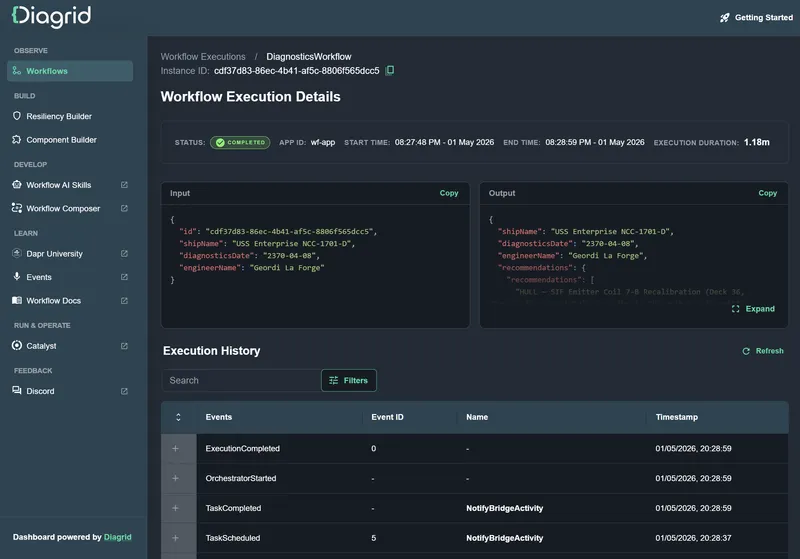
The diag-002 workflow instance should use fan-out/fan-in instead of task chaining for the analysis activities. Use the Diagrid Dev Dashboard to inspect the workflow status and the final state.
- Stop the Aspire solution using
CTRL+Cin the terminal where Aspire is running.
Run with Catalyst
Catalyst is an enterprise platform that provides durability and security when running workflows, AI agents and MCP servers. Catalyst has a built-in workflow engine powered by Dapr.
You can connect your local application to Catalyst for debugging and to better understand the workflow execution. Let's update the AppHost.cs and configure the Aspire solution to use Catalyst instead of Dapr locally.
Prerequisites
Update the Aspire solution
- There is an Aspire-Catalyst integration package to allow easy setup of the Aspire project with Catalyst. Add the Aspire-Catalyst integration by installing this Nuget package:
dotnet add EnterpriseDiagnostics.AppHost/EnterpriseDiagnostics.AppHost.csproj package Diagrid.Aspire.Hosting.Catalyst- Remove the Valkey integration since the built-in workflow state store in Catalyst will be used:
dotnet remove EnterpriseDiagnostics.AppHost/EnterpriseDiagnostics.AppHost.csproj package Aspire.Hosting.Valkey- Remove the Dapr integration since Catalyst replaces the local Dapr sidecar process:
dotnet remove EnterpriseDiagnostics.AppHost/EnterpriseDiagnostics.AppHost.csproj package CommunityToolkit.Aspire.Hosting.Dapr- Replace the complete
AppHost.cscode with the following:
using Diagrid.Aspire.Hosting.Catalyst;

var builder = DistributedApplication.CreateBuilder(args);

// This configures a new project in Catalyst with a managed state store for workflow state.
var catalystProject = builder.AddCatalystProject("wf-aspire", new()
    {
        EnableManagedWorkflow = true,
    });


// The apiService will not use a Dapr sidecar anymore but will use the Catalyst.
var workflowApp = builder.AddProject<Projects.EnterpriseDiagnostics_ApiService>("wf-app")
    .WithCatalyst(catalystProject);

builder.Build().Run();
Notice that the Catalyst configuration is minimal. A Catalyst project is added (wf-aspire) with a managed workflow and the ApiService (wf-app) is configured to use Catalyst. The configuration for the Diagrid Dev Dashboard is removed from the AppHost since there’s no more local workflow state due to Catalyst and the managed workflow engine.
- First login using the Diagrid CLI and follow the instructions:
diagrid login- After the login, restart the application using
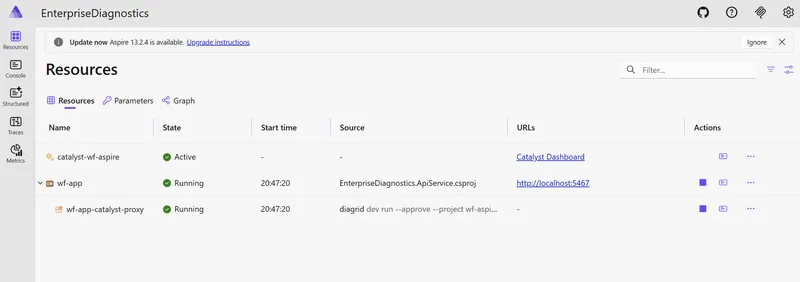
aspire run. The first time you start the solution, some Catalyst resources are created, which can take a minute. - Check the Aspire dashboard to see whether the Catalyst resource (
catalyst-wf-aspire) has successfully started and is active.
- Once all the Aspire resources are up and running, make a new POST request to the
/startendpoint to start a new workflow execution:
  curl -X POST http://localhost:5467/start \
    -H "Content-Type: application/json" \
    -d '{
      "id": "diag-002-catalyst",
      "shipName": "USS Enterprise NCC-1701-D",
      "diagnosticsDate": "2370-04-08",
      "engineerName": "Geordi La Forge"
    }'
Or using PowerShell:
$body = @{
    id = "diag-002-catalyst"
    shipName = "USS Enterprise NCC-1701-D"
    diagnosticsDate = "2370-04-08"
    engineerName = "Geordi La Forge"
} | ConvertTo-Json

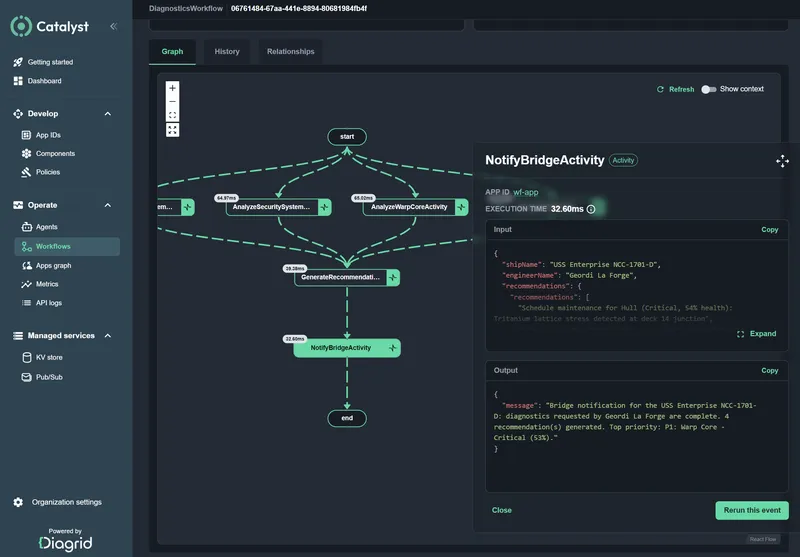
Invoke-RestMethod -Uri "http://localhost:5467/start" -Method Post -ContentType "application/json" -Body $body- Now use the Catalyst web UI and navigate to the workflow page via Operate -> Workflows.
- Select the
DiagnosticsWorkflowin the list and inspect the workflow info on the detail page. - You can drill down into the individual workflow executions by selecting an Instance ID in the Executions table. There you can use the workflow graph to inspect workflow executions, activity inputs and outputs, and durations.
Summary
You now have two techniques for evolving Dapr workflows without breaking in-flight instances. Version patches with context.IsPatched let you ship small, additive changes while existing histories replay cleanly. Named workflow versions such as DiagnosticsWorkflowV2 let you make structural changes by running old and new types side by side. Both rely on registering Dapr Workflow versioning using AddDaprWorkflowVersioning. Use Catalyst for interactive workflow visualization, state inspection, and workflow operations when running in production.
Eager to learn more? Have a look at our upcoming webinars. If you're new to Dapr or Dapr Workflow, try the free lessons at Dapr University.
If you have any questions about Dapr Workflow please join the Dapr Discord and look for the #workflow channel.